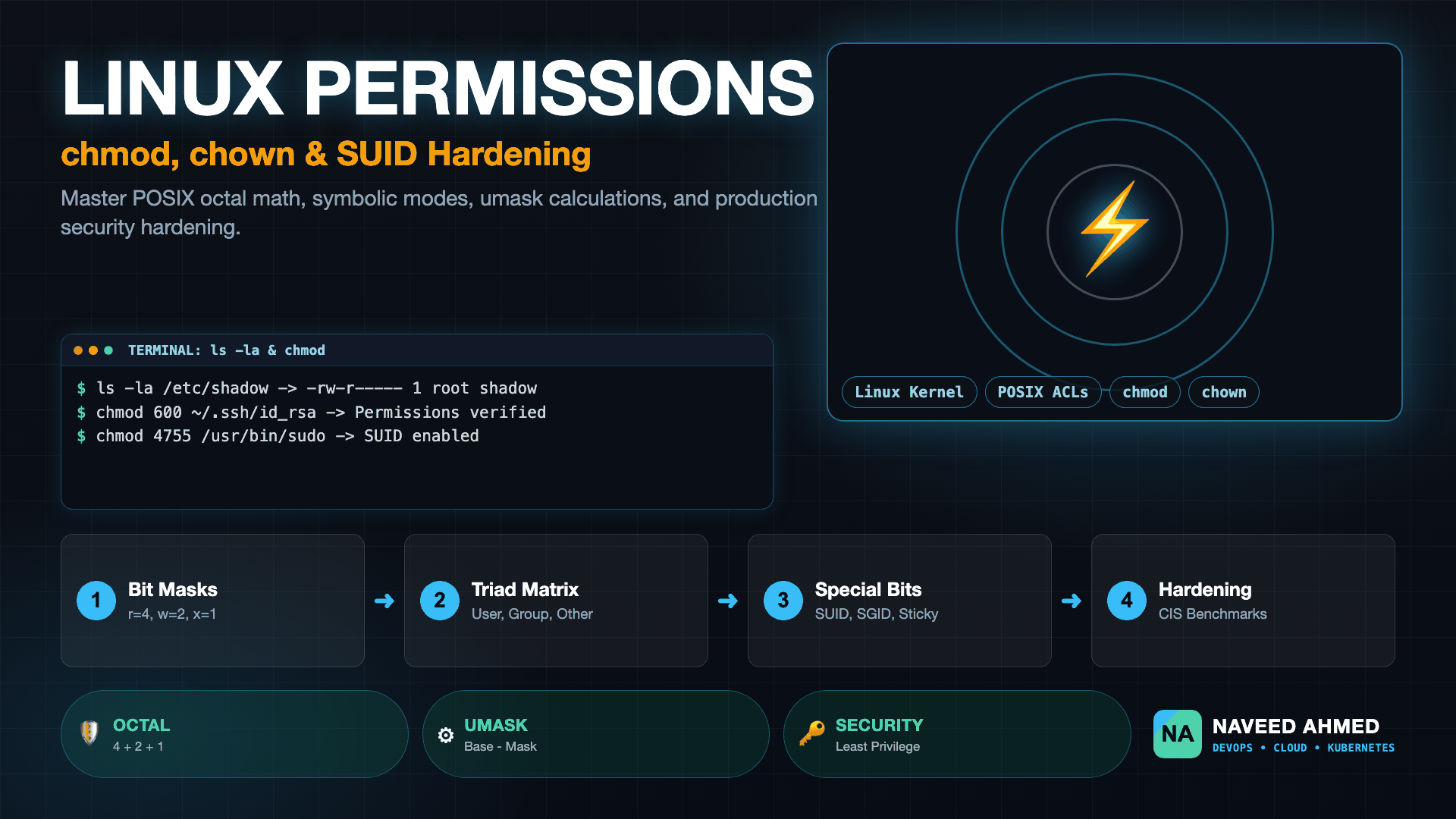
Having linux file permissions explained clearly is essential for any engineer operating cloud infrastructure. Every day, production incidents stem from misapplied access rights: web services crashing because an NGINX worker cannot read TLS certificates, containers in Kubernetes entering CrashLoopBackOff due to unreadable persistent volume mounts, or well-meaning developers running chmod -R 777 and turning a private bastion host into an open security hazard.
POSIX File Security: Understanding the Anatomy of ls -l
Linux security relies on the standard POSIX access control model. Every file, directory, socket, named pipe, and block device on a UNIX filesystem belongs to a specific owner and a specific group. When you inspect an asset in the terminal with ls -l, the operating system outputs a ten-character metadata string that encodes the object type and its security boundaries:
# Example: Listing a standard production file and directory
$ ls -l /var/log/nginx/access.log
-rw-r----- 1 www-data adm 142080 Nov 22 09:30 /var/log/nginx/access.log

$ ls -ld /var/log/nginx
drwxr-x--- 2 www-data adm   4096 Nov 22 09:00 /var/log/nginx
The initial character specifies the inode file type:
-represents a regular file (e.g. text file, binary executable, archive).ddenotes a directory.ldenotes a symbolic link pointing to another path.candbrepresent character devices (e.g./dev/null) and block devices (e.g./dev/sda1).sandprepresent UNIX domain sockets and named pipes (FIFOs).
The remaining nine positions break cleanly into three consecutive triads of three bits each:
- User (u): Permissions granted exclusively to the account owning the file.
- Group (g): Permissions granted to users belonging to the assigned group.
- Others (o): Permissions granted to every other account on the operating system.
Linux evaluates access using a strict first-match hierarchy. If the process UID matches the file owner, the kernel checks owner permissions and stops. If the UID does not match but the GID matches the group, it checks group permissions and stops. If neither matches, it evaluates Others. The system does not combine or accumulate privileges across triads.
The 970+ Incident Handbook & K8s Runbooks are exclusive to subscribers — unlock for FREE
Get battle-tested production runbooks, AWS architecture blueprints, and zero-downtime CI/CD post-mortems sent directly to your inbox. 100% free, no spam.
Octal Mathematics vs Symbolic Notation: How chmod Calculates Modes
Modifying file access with the chmod (change mode) command can be accomplished using either symbolic syntax or numeric octal modes. While symbolic mode offers fine-grained additive adjustments (such as chmod g+w file), production automation scripts, Ansible playbooks, and Terraform provisioners rely on octal notation.
Each permission character maps to a distinct binary bit and corresponding octal value:
| Permission | Symbol | Binary | Octal Value | File Meaning | Directory Meaning |
|---|---|---|---|---|---|
| Read | r |
100 |
4 | Read file contents | List contents of the directory |
| Write | w |
010 |
2 | Modify or truncate file | Add, rename, or delete files inside |
| Execute | x |
001 |
1 | Execute binary or shell script | Traverse (cd) and access inodes |
| None | - |
000 |
0 | No access allowed | No access or traversal allowed |
To determine the numeric mode for any triad, sum the values:
rwx= 4 + 2 + 1 = 7 (Full read, write, execute)rw-= 4 + 2 + 0 = 6 (Read and write)r-x= 4 + 0 + 1 = 5 (Read and execute)r--= 4 + 0 + 0 = 4 (Read only)---= 0 + 0 + 0 = 0 (No permissions)
Combining the three triads produces standard three-digit modes:
# Setting standard web directory permissions (rwxr-xr-x)
chmod 755 /var/www/html

# Setting standard web static file permissions (rw-r--r--)
chmod 644 /var/www/html/index.html

# Setting strictly confidential credentials (rw-------)
chmod 600 ~/.ssh/id_rsa
Why Does Executing a Script Require Both Read and Execute Permissions?
A frequent puzzle during DevOps technical interviews is why a compiled binary needs only execute permissions (--x), while a Bash or Python script fails unless it has both read and execute permissions (r-x).
When you execute an ELF binary, the Linux kernel's binary loader (execve system call) directly loads the binary instructions into virtual memory. The user process does not need to open the file descriptor for reading. However, when you run a script beginning with a shebang like #!/usr/bin/env python3, the kernel launches the interpreter binary and passes the script's filepath as an argument. The interpreter process must open and parse the file as text. If the file lacks read permission, the interpreter cannot read its lines and throws a permission denied error.
Advanced Special Permissions: SUID, SGID, and the Sticky Bit
Standard User/Group/Other triads cannot resolve every operational requirement. Modern multi-user environments rely on three special permission bits, represented by a fourth leading digit in the octal mode:
| Special Bit | Leading Octal | Symbolic Character | Target Inode | Operational Behavior |
|---|---|---|---|---|
| SUID (Set User ID) | 4000 | s in owner execute (e.g. rws) |
Binary files only | Process runs with privileges of the file owner (often root) |
| SGID (Set Group ID) | 2000 | s in group execute (e.g. rws) |
Files or Directories | Directories force new files to inherit parent group ID |
| Sticky Bit | 1000 | t in others execute (e.g. rwt) |
Directories only | Only file owners or root can delete or rename files inside |
1. SUID (Set User ID - Octal 4000)
Under standard execution, a command runs with the UID of the user who initiated it. SUID overrides this by running the binary with the UID of the file owner. The classic example is /usr/bin/passwd:
# Notice the 's' in the owner triad
$ ls -l /usr/bin/passwd
-rwsr-xr-x 1 root root 68208 Jan 18 12:00 /usr/bin/passwd
When a normal user updates their password, passwd needs to update /etc/shadow, which is owned by root with 0640 permissions. Because the binary has SUID set and is owned by root, the process gains root privileges during execution to update the shadow record safely.
2. SGID (Set Group ID - Octal 2000)
When applied to directories, SGID solves shared storage problems. By default, when a user creates a file in a shared directory, the file's group is set to that user's primary group. This frequently blocks other team members from modifying the file. SGID forces every newly created file or subfolder to inherit the group of the parent directory:
# Setting up a shared deployment directory for team 'devops'
$ sudo mkdir -p /opt/deployments
$ sudo chown root:devops /opt/deployments
$ sudo chmod 2775 /opt/deployments

$ ls -ld /opt/deployments
drwxrwsr-x 2 root devops 4096 Nov 22 10:00 /opt/deployments
3. Sticky Bit (Octal 1000)
In shared world-writable directories such as /tmp or /var/tmp, mode 777 would allow any user to delete or rename files created by other services. The Sticky Bit solves this by restricting deletion:
# The 't' at the end indicates the Sticky Bit
$ ls -ld /tmp
drwxrwxrwt 14 root root 4096 Nov 22 10:15 /tmp
Even though /tmp is writable by anyone, unprivileged users cannot remove each other's temporary files.
If you see a capital S in the owner or group triad (e.g. -rwSr-xr-x), it means SUID or SGID is configured, but the underlying execute bit (x) is missing. If the execute bit is present, it appears as a lowercase s. Similarly, an uppercase T on a directory means the sticky bit is set on a folder that lacks general execute permission.
Interactive Arcade Drill: Test Your chmod Speed Under Pressure
Memorizing octal additions during a calm study session is one thing; diagnosing live system issues under production downtime pressure is another. To help engineers build genuine active recall reflexes, we built an interactive training simulator:
Challenge yourself in the Linux permissions speed arcade game: 20 rapid-fire questions under a 10-second timer. Test your octal-to-symbolic math, evaluate umask masks, audit SUID binaries, and benchmark your engineering reflexes.
The Umask Subtraction Rule: How Default Inode Permissions Are Generated
When a process creates a new file or directory, it does not explicitly pass 755 or 644. Instead, the Linux kernel determines default modes by applying the system umask (user file creation mode mask).
The operating system defines standard starting points:
- Base Directory Permissions:
0777(Directories need execute rights to allow traversal). - Base File Permissions:
0666(Security baseline: standard files never receive execute permissions automatically).
The final permissions are calculated through bitwise subtraction (Base AND (NOT Umask)). In standard decimal arithmetic, this acts as simple subtraction:
| Umask Setting | Base Directory (0777) | Final Directory Mode | Base File (0666) | Final File Mode | Operational Environment |
|---|---|---|---|---|---|
0022 |
777 - 022 | 755 (drwxr-xr-x) |
666 - 022 | 644 (-rw-r--r--) |
Standard Ubuntu/Debian/RHEL default |
0027 |
777 - 027 | 750 (drwxr-x---) |
666 - 027 | 640 (-rw-r-----) |
CIS Hardened server (Others blocked) |
0077 |
777 - 077 | 700 (drwx------) |
666 - 077 | 600 (-rw-------) |
Confidential vaults & SSH bastions |
# Checking your current shell umask
$ umask
0022

# Setting a hardened umask for sensitive shell sessions
$ umask 027
$ touch sensitive.txt && ls -l sensitive.txt
-rw-r----- 1 naveed devops 0 Nov 22 10:20 sensitive.txt
Production Hardening Runbook: 5 Critical Real-World Scenarios
To safeguard production systems against privilege escalation and unauthorized disclosures, follow this definitive hardening checklist:
1. SSH Credential Isolation
SSH daemon security strictly refuses to load keys that have permissive permissions:
# Secure the user's .ssh directory
chmod 700 ~/.ssh

# Secure the private keys
chmod 600 ~/.ssh/id_rsa ~/.ssh/id_ed25519

# Secure authorized_keys and public keys
chmod 644 ~/.ssh/authorized_keys ~/.ssh/id_rsa.pub
2. Web Application Document Roots
Never run chmod 777 on web roots. Separate directory navigation from file reading:
# Fix ownership to web runtime account
sudo chown -R www-data:www-data /var/www/html

# Apply 755 to folders and 644 to files safely using find
sudo find /var/www/html -type d -exec chmod 755 {} +
sudo find /var/www/html -type f -exec chmod 644 {} +

# Lock down sensitive environment or config files
sudo chmod 640 /var/www/html/.env /var/www/html/wp-config.php
3. Auditing Dangerous SUID Binaries
Attackers who gain low-privileged shell access look for non-standard SUID binaries to escalate to root. Periodically audit your server filesystems:
# Scan filesystem for all SUID binaries
sudo find / -perm -4000 -type f -exec ls -ld {} + 2>/dev/null

# Strip SUID from unnecessary tools (e.g. nmap, vim, python, find)
sudo chmod u-s /usr/local/bin/custom-tool
4. Securing Cron Jobs and Systemd Units
If a cron job or systemd service unit file is writable by unprivileged users, any local user can inject commands that execute as root:
# Systemd unit files must be owned by root and writable only by root
sudo chown root:root /etc/systemd/system/*.service
sudo chmod 644 /etc/systemd/system/*.service

# Cron directories must also be locked down
sudo chown root:root /etc/cron.* /etc/crontab
sudo chmod 700 /etc/cron.*
5. Managing Persistent Volumes in Kubernetes Pods
When non-root containers mount persistent volumes (EBS, NFS, AzureDisk), the mounted directory is often owned by root, causing immediate application crashes. Instead of loosening container security, use securityContext.fsGroup:
spec:
  securityContext:
    runAsUser: 10001
    runAsGroup: 10001
    fsGroup: 10001
    fsGroupChangePolicy: "OnRootMismatch"
The Kubernetes kubelet automatically applies group ownership and read/write rights for group 10001 to the mounted volume, avoiding manual chmod workarounds. For deeper container optimization drills, explore our Docker build speed game and study standard Unix permissions interview questions.
Key Takeaways & Operational Checklist
- Octal Mental Math: Remember 4 (Read), 2 (Write), 1 (Execute). Triads: Owner, Group, Others.
- Zero 777 in Production: Never use 777 as a lazy fix. Use proper group memberships (
usermod -aG) or POSIX ACLs (setfacl). - Directories vs Files: Directories need execute permissions to be entered; files do not unless they are executable binaries.
- Special Bits: SUID (4) for binary execution as owner; SGID (2) for directory group inheritance; Sticky Bit (1) for multi-user deletion safety.
- Umask Control: Use 022 for standard servers and 027 for hardened multi-tenant environments.
Frequently Asked Questions
Direct answers to frequent engineering questions regarding AI coding agent disruptions, entry-level career outlooks, computer science degree value, and the changing landscape of software development roles in production environments.
What does Linux file permissions explained mean in practical system administration?
Linux file permissions explained refers to the POSIX security architecture governing file read, write, and execution privileges across three distinct user classes: Owner (User), Group, and Others. Permissions use numeric octal values (4 for read, 2 for write, 1 for execute) or symbolic strings (-rwxr-xr-x) to enforce access control.
What is the difference between chmod 755 and chmod 644?
Mode 755 grants the file owner read, write, and execute permissions (4+2+1=7), while group members and others receive read and execute (4+0+1=5). Mode 644 grants the owner read and write (4+2=6), while group members and others receive read-only access (4+0=4) with no execution rights.
What are SUID, SGID, and the Sticky Bit?
These are special permission bits represented by a fourth leading octal digit. SUID (4) executes a binary with the file owner's privileges. SGID (2) forces new files in a directory to inherit that directory's group ID. The Sticky Bit (1) prevents unprivileged users from deleting or renaming files owned by others in shared directories like /tmp.
How does umask work when creating new files and directories?
The umask acts as a bitmask filter subtracted from default base permissions. Newly created directories begin with base 777 (drwxrwxrwx), while standard files begin with base 666 (-rw-rw-rw-). Under standard umask 022, directories become 755 (777-022) and files become 644 (666-022).