1. Step 1: Root Account Lockdown & Break-Glass Security
The root user of an AWS account possesses unrestricted access to every resource, billing record, and IAM permission. Compromising root credentials results in total account takeover within minutes.
Mandatory Root Hardening Procedures:
- Hardware MFA Only: Enforce FIDO2/WebAuthn hardware security keys (e.g. YubiKey 5 Series). Register two separate physical keys (one active, one stored in a fireproof company safe). Never use SMS MFA.
- Delete All Root Access Keys: The root account must NEVER possess programmatic AWS Access Keys (
AKIA...). Verify under IAM → Credential Report that 0 root access keys exist. - Group Email Alias: Register the root account to a centralized corporate distribution list (e.g.,
aws-root@company.com) monitored by multiple founders/leads, rather than an individual's personal mailbox.
2. Step 2: Multi-Account AWS Organizations Topology
Never run production and staging workloads within a single AWS account. A single misconfigured security group or rogue terraform destroy command can wipe out your live customer database.
┌────────────────────────────────────────────────────────┐
│             AWS ORGANIZATIONS (MULTI-ACCOUNT)          │
├────────────────────────────────────────────────────────┤
│ 1. Management Account (Billing, SCPs, Consolidated)    │
│    ├── Core OU                                         │
│    │   ├── Security Account (CloudTrail, GuardDuty)    │
│    │   └── Log Archive Account (Immutable S3 Buckets)  │
│    └── Workloads OU                                    │
│        ├── Development / Staging Account               │
│        └── Production Account (Isolated VPC, KMS)      │
└────────────────────────────────────────────────────────┘
Benefits: Completely isolated AWS service quotas, zero shared blast radius, and clean per-environment billing separation.
3. Step 3: Zero-Trust Identity via AWS IAM Identity Center (SSO)
Say goodbye to long-lived IAM user credentials stored in local ~/.aws/credentials files. IAM Identity Center (formerly AWS SSO) provides short-lived (1–12 hour) temporary STS tokens authenticated via Google Workspace, Okta, or Microsoft Entra ID.
# Modern SRE Terminal Authentication via AWS SSO
aws configure sso
# SSO session name: my-company
# SSO start URL: https://my-company.awsapps.com/start
# SSO region: eu-west-1
aws sso login --profile prod-admin
4. Step 4: Cost Guardrails, Budget Caps & Anomaly Detection
Surprise cloud bills happen when a developer spins up a GPU instance or an S3 bucket experiences unexpected ingress traffic.
Zero-Cost FinOps Setup:
- AWS Budgets with SNS Alerts: Configure a monthly budget (e.g. $100 for dev, $500 for prod) with alert triggers at 50%, 80%, and 100% of forecasted spend sent to Slack via AWS Chatbot.
- AWS Cost Anomaly Detection: Turn on Cost Anomaly Detection using machine learning to detect unexpected spikes over $25 within 24 hours.
- Free Tier Usage Alerts: Enable automated notifications when resource consumption approaches AWS Free Tier thresholds.
5. Step 5: S3 & DynamoDB Remote State Backend Bootstrap
Before writing application Terraform code, establish an encrypted, versioned remote state backend:
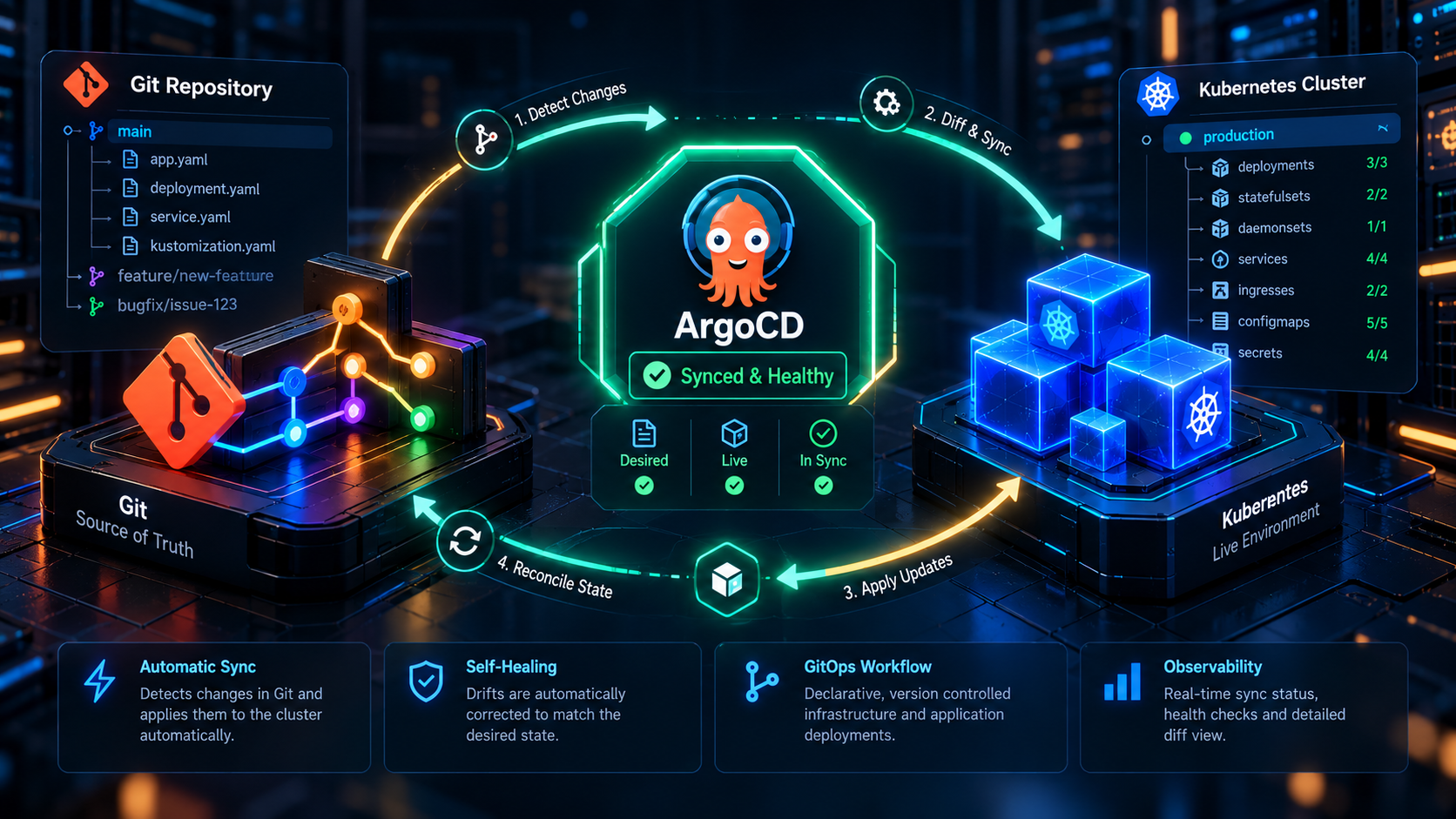
# Bootstrap Remote State S3 Bucket with Server-Side Encryption & Object Locking
resource "aws_s3_bucket" "terraform_state" {
  bucket        = "company-prod-tfstate-eu-west-1"
  force_destroy = false
}

resource "aws_s3_bucket_versioning" "state" {
  bucket = aws_s3_bucket.terraform_state.id
  versioning_configuration {
    status = "Enabled"
  }
}

resource "aws_s3_bucket_server_side_encryption_configuration" "state" {
  bucket = aws_s3_bucket.terraform_state.id
  rule {
    apply_server_side_encryption_by_default {
      sse_algorithm = "AES256"
    }
  }
}

# DynamoDB Table for Distributed State Locking
resource "aws_dynamodb_table" "terraform_locks" {
  name         = "terraform-locks"
  billing_mode = "PAY_PER_REQUEST"
  hash_key     = "LockID"

  attribute {
    name = "LockID"
    type = "S"
  }
}
6. Step 6: Keyless GitHub Actions OIDC Integration
Storing static AWS_ACCESS_KEY_ID and AWS_SECRET_ACCESS_KEY in GitHub repository secrets is an antiquated security vulnerability. Use OpenID Connect (OIDC) to exchange short-lived JWT tokens for temporary AWS STS credentials:
# .github/workflows/deploy.yml
name: Production Terraform Deploy
on:
  push:
    branches: [main]

permissions:
  id-token: write # Required for requesting the JWT
  contents: read

jobs:
  deploy:
    runs-on: ubuntu-latest
    steps:
      - uses: actions/checkout@v4
      - name: Configure AWS Credentials via OIDC
        uses: aws-actions/configure-aws-credentials@v4
        with:
          role-to-assume: arn:aws:iam::123456789012:role/GitHubActionsTerraformRole
          aws-region: eu-west-1
      - name: Terraform Apply
        run: |
          terraform init
          terraform apply -auto-approve
7. Step 7: CloudTrail & GuardDuty Security Baseline
Turn on AWS CloudTrail multi-region organizational trail to record all management and data plane API calls into an immutable S3 bucket. Enable Amazon GuardDuty for intelligent threat detection (compromised EC2 instances, crypto-mining activity, unauthorized S3 exfiltration) with zero agents required.
8. The 10-Point Production Launch Checklist
| # | Security / Operational Control | Validation Command / Tool | Status |
|---|---|---|---|
| 1 | Hardware MFA on Root Account | IAM Security Credentials console | ✅ Enforced |
| 2 | Zero Root Access Keys Exist | aws iam get-account-summary |
✅ 0 Keys |
| 3 | AWS Organizations Multi-Account Topology | AWS Organizations console | ✅ Active |
| 4 | IAM Identity Center (SSO) Configured | aws sso login |
✅ Keyless |
| 5 | Cost Budgets & Anomaly Alerts Active | AWS Budgets Slack integration | ✅ <$100 Alerts |
| 6 | S3 Remote State with DynamoDB Locking | terraform init |
✅ Locked |
| 7 | Keyless GitHub Actions OIDC Configured | GitHub Actions workflow run | ✅ Zero Secrets |
| 8 | CloudTrail Multi-Region Trail Active | aws cloudtrail describe-trails |
✅ Logging |
| 9 | Amazon GuardDuty Enabled in All Regions | aws guardduty list-detectors |
✅ Monitored |
| 10 | Default VPC Subnets Deleted in Prod | aws ec2 describe-vpcs |
✅ Custom CIDR |
9. Frequently Asked Questions (FAQ)
Why shouldn't I use the default VPC created by AWS?
The default VPC uses the 172.31.0.0/16 CIDR block with all subnets configured as public with automated public IPv4 assignment. This exposes database and container instances directly to the internet. Production environments require a custom VPC with private subnets and explicit route tables.
How many AWS accounts do I need as a startup?
At minimum, we recommend 3 accounts: (1) Management/Billing Account, (2) Development/Staging Account, and (3) Production Account. This completely isolates live production databases from testing experiments.
What is the monthly cost of this security baseline?
Almost zero dollars! AWS Organizations, IAM Identity Center, AWS Budgets, and GitHub Actions OIDC are 100% free. CloudTrail management events are free for the first copy. GuardDuty has a 30-day free trial and costs pennies per month for low-traffic accounts.